Adding Local Weather to My GitHub Copilot CLI Statusline
Summer is starting to settle in here in Dracut, and the warmer days got me thinking about how much time I spend staring at a terminal versus actually being outside. Most of my workday now happens inside GitHub Copilot CLI, so I figured if I am going to keep one eye on a prompt all day, I might as well let it tell me what the weather looks like outside. That small idea turned into a tiny statusline script that I have been using for the last couple of weeks, and I wanted to share it.
The full source lives in this gist: Custom GitHub Copilot CLI statusline with local weather.
Why bother
Copilot CLI ships with a statusline that you can fully customize through an experimental setting. I had seen Tugdual Grall’s post on the same feature a few weeks back, and it stuck with me. The statusline is just a shell command. Whatever you print to stdout shows up at the bottom of the screen. That is a surprisingly fun place to put information.
I tried a few ideas (git branch, current model, token usage) and then landed on the weather. It is the kind of glanceable signal that is useful for picking when to step away from the desk, and it is honest: if it says 90 degrees outside, it is probably a good day to wrap up early and go for a walk.
What the script does
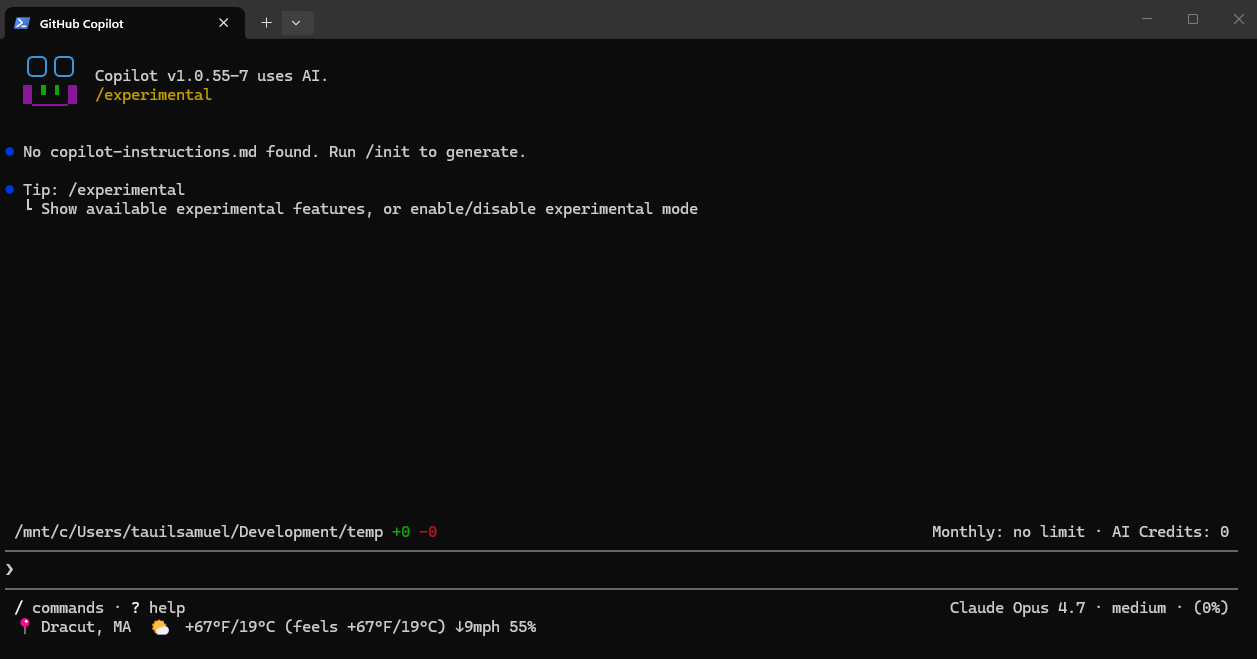
The script calls wttr.in, which is a free, no-API-key weather service that already speaks plain text. I ask for a compact format string with the condition icon, temperature, feels-like, wind, and humidity, then convert Fahrenheit to Celsius locally with awk so I only make one HTTP request per refresh. Output ends up looking like this:
📍 Dracut, MA 🌤️ +67°F/19°C (feels +67°F/19°C) ↓9mph 55%
A few details I cared about while writing it:
- The statusline runs on every render tick, and I did not want to hammer wttr.in. The script caches the result to
~/.copilot/.weather-statusline.cacheand only refetches every 15 minutes by default. - Copilot CLI pipes a JSON payload to the script on stdin. I do not need it for the weather, but I drain it so the write does not block.
- If the network is down or the request fails, the script falls back to whatever was last cached. If there is nothing cached, it prints a quiet
weather unavailablemessage instead of erroring out. - Location is configurable either by editing two variables at the top of the file, or by setting
WEATHER_LOCATIONandWEATHER_LABELas environment variables. I keep mine in my shell profile so the same script works across machines.
The script
#!/usr/bin/env bash
# Custom GitHub Copilot CLI statusline: shows current weather for a configurable
# location in both °F and °C via wttr.in (no API key required).

# CUSTOMIZE ME
WEATHER_LOCATION="${WEATHER_LOCATION:-Dracut,MA}"
WEATHER_LABEL="${WEATHER_LABEL:-📍 Dracut, MA}"
CACHE_TTL="${WEATHER_CACHE_TTL:-900}"

set -eu

# Copilot CLI pipes a JSON payload to stdin on each render. Drain it.
cat >/dev/null

CACHE_FILE="${HOME}/.copilot/.weather-statusline.cache"

now=$(date +%s)
if [ -f "$CACHE_FILE" ]; then
  mtime=$(stat -c %Y "$CACHE_FILE" 2>/dev/null || stat -f %m "$CACHE_FILE" 2>/dev/null || echo 0)
  age=$((now - mtime))
else
  age=$((CACHE_TTL + 1))
fi

if [ "$age" -gt "$CACHE_TTL" ]; then
  encoded_loc=$(printf '%s' "$WEATHER_LOCATION" | sed 's/ /+/g')
  raw=$(curl -fsS --max-time 3 \
    "https://wttr.in/${encoded_loc}?format=%c|%t|%f|%w|%h" 2>/dev/null || true)
  if [ -n "$raw" ]; then
    IFS='|' read -r cond tempF feelsF wind humidity <<< "$raw"
    tF=$(printf '%s' "$tempF" | tr -cd '0-9-')
    fF=$(printf '%s' "$feelsF" | tr -cd '0-9-')
    if [ -n "$tF" ]; then
      tC=$(awk "BEGIN{printf \"%d\",($tF-32)*5/9}")
      fC=$(awk "BEGIN{printf \"%d\",($fF-32)*5/9}")
      fetched="${cond} ${tempF}/${tC}°C (feels ${feelsF}/${fC}°C) ${wind} ${humidity}"
      printf '%s' "$fetched" > "$CACHE_FILE"
    fi
  fi
fi

if [ -f "$CACHE_FILE" ]; then
  weather=$(cat "$CACHE_FILE")
else
  weather="🌐 weather unavailable"
fi

printf "%s %s" "$WEATHER_LABEL" "$weather"
Installing it
There are four steps, and the whole thing takes a couple of minutes.
1. Save the script. Drop it at ~/.copilot/statusline.sh and make it executable:
chmod +x ~/.copilot/statusline.sh
2. Pick your location. Either edit WEATHER_LOCATION and WEATHER_LABEL at the top of the file, or set them as environment variables in your shell profile. WEATHER_LOCATION accepts anything wttr.in understands: a US city plus state (Dracut,MA), a city plus country (Paris,France), a ZIP code (94016), an airport code (MUC), or a landmark prefixed with a tilde (~Eiffel+Tower).
3. Enable the statusline in Copilot CLI. This is still an experimental feature, so you need to flip it on. Edit ~/.copilot/settings.json:
{
  "experimental": true,
  "statusLine": {
    "type": "command",
    "command": "~/.copilot/statusline.sh",
    "padding": 1
  }
}
4. Restart Copilot CLI. Run /restart in an existing session or relaunch the copilot command. The first render takes a beat while it fetches the initial weather, and after that the cache keeps things instant.
Running it on Windows
The script is a bash script, so on Windows you need a POSIX-style shell. Two paths work well, depending on how you already run Copilot CLI.
Option 1: WSL (recommended). If you are running Copilot CLI inside WSL (Ubuntu, Debian, etc.), the steps above work as written. Save the script to ~/.copilot/statusline.sh inside your WSL home, chmod +x it, and point ~/.copilot/settings.json (the one inside WSL) at it. curl, awk, sed, and stat -c are all available out of the box.
Option 2: Git Bash. If you run Copilot CLI in Git Bash on Windows directly, the script also works, but the path layout is different. From Git Bash:
mkdir -p ~/.copilot
# Save the script to ~/.copilot/statusline.sh, then:
chmod +x ~/.copilot/statusline.sh
In Git Bash, ~ resolves to C:\Users\<you>, so the settings file lives at C:\Users\<you>\.copilot\settings.json. Copilot CLI expects the command value to be a path it can execute, and on Windows that means pointing at the Git Bash shell explicitly. Edit settings.json like this:
{
  "experimental": true,
  "statusLine": {
    "type": "command",
    "command": "C:\\Program Files\\Git\\bin\\bash.exe -c \"~/.copilot/statusline.sh\"",
    "padding": 1
  }
}
Adjust the path to bash.exe if you installed Git for Windows somewhere else. PowerShell and cmd.exe cannot run the script directly because it relies on bash features (<<< here-strings, IFS splitting, stat), so wrapping it in bash -c is the simplest way to keep one script that works everywhere.
A couple of small Windows gotchas worth knowing about:
- Make sure the file is saved with LF line endings, not CRLF. If you edited it in a Windows editor and bash complains about
\rcharacters, rundos2unix ~/.copilot/statusline.sh(or setcore.autocrlf=inputbefore cloning). - The script uses
stat -c %Yfirst and falls back tostat -f %m, which covers both GNU coreutils (WSL, Git Bash) and BSD-style stat (macOS), so the cache-age check works in all three environments.
Closing thought
It is a small thing, but I have caught myself glancing at it more than I expected. The statusline is one of those places where you can put exactly one piece of information that makes your day a little better, and for me, right now, that is the weather. If you want a different signal there (build status, current sprint, on-call rotation), the same pattern works. Print to stdout, cache anything expensive, and let Copilot CLI render it.
Inspired by Tugdual Grall’s post on customizing the Copilot CLI statusline.